Demand Forecasting & Planning in Dynamics 365 Business Central: A Complete Guide

In today’s fast-paced and competitive business environment, accurate demand forecasting and planning are no longer optional—they are essential. Whether you’re managing inventory, scaling production, or optimizing supply chain operations, the ability to predict customer demand with precision can make or break your business.

Microsoft Dynamics 365 Business Central offers powerful tools to help small and mid-sized businesses streamline demand forecasting and planning processes. With built-in intelligence, automation, and integration capabilities, Business Central transforms raw data into actionable insights—empowering you to make smarter, data-driven decisions.

In this comprehensive blog post, we’ll explore everything you need to know about demand forecasting and planning in Dynamics 365 Business Central, including its benefits, key features, best practices, and practical examples.


What is Demand Forecasting & Planning?

Demand forecasting is the process of estimating future customer demand for products or services based on historical data, market trends, and business intelligence. Demand planning takes this a step further by aligning inventory, production, and procurement strategies to meet that forecasted demand efficiently.

Together, these processes help businesses:

  • Avoid stockouts and overstocking
  • Reduce carrying costs
  • Improve customer satisfaction
  • Optimize supply chain performance
  • Enhance financial planning

Without accurate forecasting, companies risk either missing sales opportunities or tying up capital in excess inventory.


Why Use Dynamics 365 Business Central for Demand Forecasting?

Dynamics 365 Business Central is more than just an ERP system—it’s a smart, cloud-based platform that integrates finance, sales, purchasing, inventory, and supply chain management. Its forecasting and planning tools are designed specifically for real-world business challenges.

Key Advantages:

Real-Time Data Integration
Pulls data from sales orders, inventory levels, and historical trends automatically.
User-Friendly Interface
No coding or complex spreadsheets needed. Accessible to non-technical users.
Built-in Forecasting Tools
Includes statistical forecasting models and manual adjustment capabilities.
Seamless Planning Workflows
Connects forecasting directly to purchase orders, production orders, and MRP (Material Requirements Planning).
Cloud Accessibility
Access forecasts and plans from anywhere, anytime—ideal for remote teams.

How Demand Forecasting Works in Business Central

Business Central uses a combination of historical sales data, forecast entries, and planning logic to generate accurate demand predictions. Here’s how it works:

1. Set Up Forecast Models

You can define multiple forecast scenarios (e.g., “Conservative,” “Optimistic,” “Seasonal”) based on different assumptions.

Navigate to:
Planning > Demand Forecast > Demand Forecasts

From here, you can:

  • Create new forecast models
  • Import historical sales data
  • Adjust forecasts manually

2. Enter or Import Forecast Data

Forecasts can be entered manually or imported from external sources (e.g., Excel, CRM systems). You can forecast by:

  • Item
  • Location
  • Variant
  • Date range (weekly, monthly, quarterly)

3. Run the Planning Worksheet

Once forecasts are in place, use the Planning Worksheet to generate suggested actions:

  • Purchase orders for raw materials
  • Production orders for manufactured goods
  • Transfer orders for inter-location movement

Go to:
Planning > Planning Worksheet

Click Calculate Plan and select “Demand Forecast” as a demand source.


4. Execute and Monitor

After reviewing the suggested orders, you can:

  • Approve and create actual purchase/production orders
  • Monitor fulfillment progress
  • Adjust forecasts based on real-time sales performance

Key Features of Demand Forecasting in Business Central

Forecast by Period
Supports weekly, monthly, or custom time buckets.
Seasonal products (e.g., holiday decorations).
Multiple Forecast Scenarios
Maintain different versions for what-if analysis.
Planning for new product launches or market changes.
Integration with MRP
Automatically includes forecasted demand in Material Requirements Planning.
Ensuring raw materials are available for production.
Graphical Forecast Viewer
Visualize trends with charts and graphs.
Presenting forecasts to stakeholders.
Demand–Supply Matching
Compares forecasted demand with current inventory and open orders.
Identifying potential shortages or surpluses.

Step-by-Step: Creating a Demand Forecast in Business Central

Let’s walk through a practical example.

Scenario:

You run a mid-sized electronics distributor. You want to forecast demand for wireless earbuds over the next six months to prepare inventory for the holiday season.

Step 1: Open the Demand Forecast Module

  • Go to Planning > Demand Forecast > Demand Forecasts
  • Click New to create a forecast

Step 2: Define Forecast Parameters

Forecast Name
Holiday 2024 – Earbuds
Description
Q4 Sales Forecast for Wireless Earbuds
Starting Date
October 1, 2024
Period Length
Monthly
Forecast for
Item No. = “EAR-BUD-100”

Step 3: Enter Forecasted Quantities

Input expected sales:

Oct 2024
1,200
Nov 2024
2,500
Dec 2024
4,000
Jan 2025
1,800
Feb 2025
1,000
Mar 2025
900

💡 Tip: Use historical data from 2023 to inform your estimates.

Step 4: Calculate the Plan

  • Navigate to Planning > Planning Worksheet
  • Click Calculate Plan
  • In the Calculate Plan window:
    • Set Plan Based On = “Forecast and Demand”
    • Select your forecast name
    • Choose relevant items/locations
  • Click OK

Step 5: Review and Act

The system generates suggested:

  • Purchase orders for suppliers
  • Replenishment recommendations
  • Inventory transfer suggestions

Review, adjust if needed, then create actual orders.


Best Practices for Effective Demand Planning

To get the most out of Business Central’s forecasting tools, follow these best practices:

✅ 1. Update Forecasts Regularly

Markets change. Review and revise forecasts monthly or quarterly based on actual sales and market conditions.

✅ 2. Combine Statistical and Manual Forecasting

Use historical trends as a baseline, but allow planners to adjust for promotions, seasonality, or supply disruptions.

✅ 3. Leverage Multiple Scenarios

Create “Best Case,” “Worst Case,” and “Most Likely” forecasts to prepare for uncertainty.

✅ 4. Integrate with Sales & CRM

Sync forecast data with your sales pipeline (especially if using Dynamics 365 Sales) for more accurate predictions.

✅ 5. Train Your Team

Ensure planners and supply chain staff know how to use the Planning Worksheet, interpret forecasts, and execute plans.


Common Challenges & How Business Central Helps

Inaccurate Forecasts
Uses historical data + allows manual overrides for real-world insights.
Disconnected Systems
All data lives in one integrated ERP—no more Excel silos.
Overcomplicated Processes
Guided workflows and intuitive UI reduce complexity.
Lack of Visibility
Dashboards and reports provide real-time insight into demand vs. supply.
Slow Response to Changes
Cloud-based access enables quick updates and team collaboration.

Real-World Impact: A Success Story

Company: GreenGadgets Inc. (a consumer electronics reseller)
Challenge: Frequent stockouts during peak seasons and high carrying costs during off-seasons.
Solution: Implemented demand forecasting in Business Central using historical sales and seasonal trend analysis.
Results:

  • 30% reduction in stockouts
  • 22% decrease in excess inventory
  • 18% improvement in order fulfillment time
  • Better cash flow due to optimized purchasing

“Business Central’s forecasting tools gave us the visibility we needed to plan smarter, not harder.”
— Sarah Lin, Supply Chain Manager


Conclusion: Forecast Smarter, Plan Better

Demand forecasting and planning are critical components of modern business operations. With Dynamics 365 Business Central, you don’t need expensive add-ons or data scientists to predict demand accurately. The platform provides all the tools you need—right out of the box.

By leveraging Business Central’s integrated forecasting, planning worksheets, and MRP capabilities, you can:

  • Align supply with demand
  • Reduce waste and costs
  • Improve customer satisfaction
  • Gain a competitive edge

Whether you’re a manufacturer, distributor, or retailer, investing time in mastering demand forecasting within Business Central will pay dividends across your entire operation.


Ready to Get Started?

👉 Next Steps:

  1. Audit your current forecasting process.
  2. Set up your first demand forecast in Business Central.
  3. Run a test plan using historical data.
  4. Train your team on planning workflows.
  5. Monitor results and refine your models.

💡 Need Help? Consider working with a Microsoft Partner to optimize your setup and unlock advanced features like Power BI integration and AI-driven insights.


Subscribe for More ERP Tips

If you found this guide helpful, subscribe to our blog for more insights on Dynamics 365 Business Central, supply chain optimization, financial management, and digital transformation.

Got questions? Drop them in the comments below—we’d love to hear from you!
Fixed Assets in Dynamics 365 Business Central

Managing Fixed Assets (FA) is critical for organizations to keep track of their long-term investments, such as machinery, vehicles, office equipment, and buildings. In Dynamics 365 Business Central, the Fixed Assets module allows you to:

  • Register and categorize fixed assets

  • Automate depreciation and acquisition posting

  • Track maintenance and insurance

  • Ensure compliance with accounting and tax requirements

This guide walks through the key concepts, setup, posting, and best practices for Fixed Assets in Business Central.


🔹 What Are Fixed Assets?

Fixed Assets are long-term resources owned by a business that are used in operations but not intended for resale. Examples include:

  • Tangible assets → machinery, vehicles, furniture, IT equipment, buildings

  • Intangible assets → patents, licenses, software

They need to be tracked not only for financial reporting but also for operational and compliance reasons (e.g., depreciation, insurance, and maintenance).


🔹 Fixed Asset Lifecycle in Business Central

The lifecycle of a fixed asset in Business Central typically follows these stages:

Stage Description Example
Acquisition Purchase or creation of the asset Buying a new company car
Depreciation Periodic expense allocation Monthly depreciation of the car
Revaluation Adjusting the asset’s value Increasing value of real estate
Maintenance Costs related to upkeep Repairing office equipment
Disposal Sale, scrapping, or retirement Selling old laptops

🔹 Fixed Asset Setup

Before you can start using Fixed Assets, you need to configure several elements:

1. Fixed Asset Cards

Each asset gets its own Fixed Asset Card, containing details like:

  • Asset number and description

  • FA Class and FA Subclass

  • Posting groups

  • Depreciation book assignment

  • Location, responsible employee

2. FA Classes and Subclasses

These help categorize and group assets for reporting and control.

Level Purpose Example
FA Class Broad grouping VEHICLES, BUILDINGS, MACHINERY
FA Subclass More detailed grouping Cars, Trucks, Delivery Vans

3. FA Posting Groups

FA Posting Groups map asset transactions to the correct G/L accounts. They determine where acquisition costs, accumulated depreciation, gains/losses, and disposals are posted.

4. Depreciation Books

Depreciation Books define how depreciation is calculated and posted. You can set up multiple books for different purposes (e.g., one for accounting, one for tax).

Field Purpose Example
Depreciation Method How depreciation is calculated Straight-line, Declining Balance
Depreciation Starting Date When depreciation begins 01-Jan-2025
Depreciation Period Frequency of depreciation Monthly
Integration Whether postings go to G/L Yes (for main book), No (for tax book)

🔹 Transactions in Fixed Assets

Business Central supports several transaction types for Fixed Assets:

Transaction Purpose Example
Acquisition Record purchase cost Buying office desks
Depreciation Allocate expense over time Monthly depreciation on machinery
Revaluation Adjust book value Updating value of land
Write-Down Reduce value due to impairment Damaged equipment
Appreciation Increase value (rare, but possible) Artwork value increase
Disposal Sale, scrapping, or transfer Selling a used company car

🔹 Depreciation Methods

Business Central offers multiple depreciation methods to meet different accounting and tax requirements:

Method How It Works Example
Straight-Line Equal depreciation each period $12,000 asset over 4 years = $250/month
Declining Balance Higher depreciation in earlier years 25% declining balance
DB 1/DB 2 Double/Triple declining balance variations Faster write-off of assets
Manual User-controlled posting Irregular write-offs
User-Defined Custom calculation Tailored to local tax laws

🔹 Example Workflow

  1. Acquire asset – Create FA Card, assign FA Posting Group, post acquisition via purchase invoice or FA G/L journal.

  2. Set depreciation – Assign depreciation book, method, and start date.

  3. Run depreciation – Use Calculate Depreciation batch job (monthly or yearly).

  4. Track maintenance & insurance – Record costs directly against FA Card.

  5. Dispose asset – Post sale or scrap through FA journals.


🔹 Reports and Analysis

Business Central provides a variety of FA-related reports:

  • Fixed Asset – Balance → Overview of acquisition cost and book value

  • Depreciation Book Report → Depreciation per asset or group

  • Insurance Coverage → Track insured vs. un-insured assets

  • Maintenance Costs → Review expenses tied to asset upkeep


🔹 Best Practices

  • ✅ Use FA Classes and Subclasses for better reporting and filtering

  • ✅ Separate depreciation books for accounting vs. tax compliance

  • ✅ Regularly run FA Reconciliation to align with G/L

  • ✅ Post maintenance and insurance costs directly to assets for true lifecycle cost tracking

  • ✅ Review disposals carefully to capture gains/losses correctly


🔹 Conclusion

The Fixed Assets module in Business Central provides a robust framework to manage long-term investments, ensuring compliance, accurate reporting, and lifecycle tracking. With proper setup of FA Cards, Posting Groups, and Depreciation Books, businesses can automate much of the work while gaining better financial insight.

Posting Groups in Dynamics 365 Business Central

What Are Posting Groups?

Posting Groups act as the mapping layer between transactions and G/L accounts. Instead of assigning an account manually for every sales invoice, purchase order, or item, Posting Groups define the rules so the system can do it automatically.

This ensures:

  • Consistency in financial postings

  • Faster transaction entry

  • Reduced risk of human error


🔹 Types of Posting Groups

There are two major categories in Business Central:

1. General Posting Groups

These define how revenue and costs are recognized based on who you transact with (customer/vendor) and what you transact (products/services).

Posting Group Purpose Examples
General Business Posting Group Defines who you are trading with (customers/vendors) DOMESTIC, EU, EXPORT
General Product Posting Group Defines what you are trading (goods/services) RETAIL, RAWMAT, SERVICE
General Posting Setup Combines Business + Product group to determine G/L accounts DOMESTIC + RETAIL → Sales Revenue Account

2. Specific Posting Groups

These are more direct and determine the exact G/L accounts for key master data, such as customers, vendors, inventory, and banks.

Posting Group Purpose Example Accounts
Customer Posting Group Defines the Receivables account for a customer Trade Debtors (Accounts Receivable)
Vendor Posting Group Defines the Payables account for a vendor Trade Creditors (Accounts Payable)
Inventory Posting Group Maps items to inventory accounts Finished Goods, Raw Materials
Bank Account Posting Group Links bank accounts to G/L accounts Bank of America → G/L 10100
Fixed Asset Posting Group Handles acquisition, depreciation, and disposal accounts Office Equipment, Vehicles

🔹 How Posting Groups Work Together

When you post a transaction, Business Central looks at both specific and general posting groups:

  1. Master data (Customer, Vendor, Item, Bank, etc.) → determines the specific posting group.

  2. Transaction type (Sale, Purchase, etc.) → determines the general posting group.

  3. Posting Setup → combines them and assigns the correct G/L account.

👉 Example:

  • Customer “ABC Retail” has Customer Posting Group = DOMESTIC

  • Item “Laptop” has General Product Posting Group = RETAIL

  • General Posting Setup maps DOMESTIC + RETAIL → Sales Revenue 40100

  • Result: When you post the sales invoice, the system automatically credits 40100 Sales Revenue.


🔹 Best Practices for Setting Up Posting Groups

  • Keep your structure simple – don’t create unnecessary groups.

  • Plan with your Chart of Accounts – align posting groups with your reporting needs.

  • Use naming conventions – e.g., CUST_DOMESTIC, VEND_EXPORT for clarity.

  • Test combinations in a sandbox – to avoid mismatches between business/product groups.

  • Document your setup – so finance and IT teams are aligned.


🔹 Conclusion

Posting Groups in Business Central provide the framework for accurate and automated accounting. By carefully planning and setting them up, businesses can ensure that transactions flow seamlessly into the right G/L accounts, supporting reliable financial reporting and analysis.

Financial Dimensions in Dynamics 365 Business Central

Mastering Financial Dimensions in Dynamics 365 Business Central

Meta description: Learn how to set up and use financial dimensions in Dynamics 365 Business Central. Covers global and shortcut dimensions, analysis views, best practices, and examples to supercharge financial reporting.


Why dimensions matter

In traditional accounting, every detail requires separate general ledger (G/L) accounts—leading to long, cluttered charts of accounts.

Dimensions in Business Central solve this problem. They act as tags you can attach to transactions, customers, vendors, or items, so you can analyze financial data without creating hundreds of extra G/L accounts.

With dimensions, you can answer questions like:

  • How much profit did we make by department?

  • What were marketing expenses for Project X?

  • Which region generated the most sales this quarter?


Global vs. Shortcut Dimensions

In BC, dimensions come in two flavors:

Type Purpose Where Used Max Count
Global Dimensions Primary dimensions used across system Always available on G/L entries, journals, documents 2 only
Shortcut Dimensions Additional dimensions for analysis Available in journals, sales/purchase docs, and analysis views Up to 6 in addition to globals

Think of Global Dimensions as your “must-have” tags (e.g., Department, Project), and Shortcut Dimensions as “nice-to-have” extra analysis fields (e.g., Customer Group, Region).


Common examples of dimensions

Dimension Example Values Use Case
Department Sales, HR, Finance, IT Compare costs/revenue across departments
Project Project A, Project B, Project C Track project profitability
Region North, South, East, West Regional reporting
Cost Center CC01, CC02 Managerial cost allocation
Customer Group Wholesale, Retail Margin analysis by customer type

Step 1: Set up dimensions

  1. Go to Dimensions (Tell Me → Dimensions).

  2. Create a new dimension with:

    • Code (short identifier, e.g., DEPT).

    • Name (e.g., Department).

  3. Add dimension values (the actual options, e.g., Sales, HR, IT).

Example – Department Dimension

Code Name
SALES Sales
HR Human Resources
FIN Finance
IT IT Services

Step 2: Assign global & shortcut dimensions

  1. Go to General Ledger Setup.

  2. Set your two Global Dimensions (e.g., Department, Project).

  3. Define Shortcut Dimensions (up to six more) for additional reporting.


Step 3: Apply dimensions to master data

Dimensions can be defaulted at multiple levels:

Where Why Example
Customer/Vendor card Tag all transactions with a default dimension Customer North = Region: North
Item card Track sales/purchases of specific items Item “Laptop” = Product Group: Hardware
G/L account Default dimension for specific accounts Marketing Expense = Department: Sales
Employee card For payroll and expense allocations Employee in HR = Department: HR

Defaults reduce manual entry and enforce consistency.


Step 4: Enforce rules with Dimension Combinations

Not all dimension combinations make sense. For example, you may not want “Project X” combined with “Sales Department.”

  1. Go to Dimension Combinations.

  2. Define rules for valid/invalid dimension pairings.

Dimension A Dimension B Rule
Department: Sales Project: Internal Training Blocked
Department: IT Project: Customer Project Allowed

This prevents incorrect postings and ensures clean reporting.


Step 5: Analyze with dimensions

Using Analysis Views

  • Create Analysis Views to summarize transactions by dimensions (e.g., Sales by Department and Region).

  • Update regularly to keep data fresh.

Reporting options

  • Trial Balance by Dimensions → quickly compare balances.

  • Account Schedules → include dimensions as filters for financial reporting.

  • Power BI integration → extend analysis with visuals and dashboards.


Example: Tracking expenses by department

Let’s say your company wants to monitor travel expenses:

  1. Dimension: Department (values: Sales, HR, IT).

  2. Assign “Sales” as the default department on the Travel Expense G/L account.

  3. When posting an expense report, the transaction is tagged automatically.

  4. Run an Analysis View grouped by Department to see total travel spend by function.


Best practices

  • Choose dimensions wisely – Don’t overcomplicate. Start with 2–4 meaningful ones.

  • Use Global Dimensions for core reporting – These show up everywhere, so pick carefully.

  • Leverage defaults – Set dimensions on master data to reduce user entry errors.

  • Block invalid combinations – Keep data clean with Dimension Combinations.

  • Train users – Ensure they know how and when to apply dimensions.

  • Review regularly – Retire unused dimension values and check reporting needs.


Go-live checklist

  • At least 2 global dimensions chosen and set up

  • Shortcut dimensions configured as needed

  • Dimension values defined with clear codes and names

  • Defaults assigned to customers, vendors, G/L accounts

  • Rules for valid/invalid combinations defined

  • Analysis views tested and reports verified


Final thoughts

Dimensions are one of the most powerful features in Dynamics 365 Business Central. By tagging transactions with the right attributes, you unlock flexible, real-time insights—without bloating your Chart of Accounts.

When set up correctly, dimensions give you the agility to slice and dice financial data any way the business needs—whether by project, region, customer group, or department.

Setting Up the Chart of Accounts in Dynamics 365 Business Central: The Complete Guide

Why the Chart of Accounts (CoA) matters

The Chart of Accounts is the backbone of your financial management in Dynamics 365 Business Central (BC). Every journal entry, posting, and report flows through the CoA. A cleanly structured CoA means:

  • Accurate financial reporting

  • Easier compliance and audits

  • Smooth day-to-day posting

  • Reduced errors and rework


Where to find it

  • In BC, open Tell Me (Alt+Q) → search Chart of Accounts.

  • You’ll see a list of all general ledger (G/L) accounts, with filters and columns to drill down into balances, entries, and posting setups.


Step 1: Define your account structure

Before creating accounts, design a numbering and grouping strategy.

Example numbering structure

Number Range Purpose Example Accounts
10000–19999 Assets 10100 – Cash, 12000 – Accounts Receivable
20000–29999 Liabilities 21000 – Accounts Payable, 23000 – Loans
30000–39999 Equity 31000 – Share Capital, 32000 – Retained Earnings
40000–49999 Revenue 41000 – Sales, 42000 – Services Income
50000–59999 Cost of Goods Sold (COGS) 51000 – Materials, 52000 – Purchases
60000–69999 Operating Expenses 61000 – Salaries, 62000 – Rent
70000–79999 Non-operating Income/Expenses 71000 – Interest Income, 72000 – Interest Expense
80000–89999 Year-End Adjustments/Reserves 81000 – Depreciation Reserve

Tip: Leave gaps between numbers for future accounts. For example, start “Cash” at 10100, then you can add more accounts like 10110, 10120 without disrupting numbering.


Step 2: Create G/L accounts in Business Central

From Chart of Accounts → New, you’ll configure fields such as:

Field Purpose
No. Unique account code (e.g., 10100).
Name Clear description (e.g., “Cash – Main Bank”).
Income/Balance Choose Balance Sheet (Assets/Liabilities/Equity) or Income Statement (Revenue/Expenses).
Account Category Helps group accounts in financial statements (Assets, Liabilities, etc.).
Account Subcategory Adds more detail (e.g., “Cash and Cash Equivalents”).
Account Type Options: Posting, Heading, Total, Begin-Total, End-Total.
Direct Posting If checked, users can post directly to this account. Usually off for control accounts (e.g., Accounts Payable).

Step 3: Use account types correctly

Account types let you organize and calculate totals:

  • Posting – Can be posted to (used in journals and transactions).

  • Heading – Group header (e.g., “Current Assets”). Cannot post.

  • Total – Shows the sum of accounts in a range.

  • Begin-Total / End-Total – Used together to define summing ranges.

Example

No. Name Account Type Comment
10000 Assets Heading Top-level grouping
10100 Cash Begin-Total Start total block
10110 Cash – Main Bank Posting Can be posted
10120 Petty Cash Posting Can be posted
10190 Total Cash End-Total Sums 10110–10120

Step 4: Link posting groups

To simplify posting from subledgers, configure Posting Groups. These automatically direct transactions to the correct G/L accounts.

  • General Business Posting Groups – Classify customers/vendors (e.g., Domestic, EU, Export).

  • General Product Posting Groups – Classify items/resources (e.g., Raw Materials, Services).

  • General Posting Setup – Links the above two groups to revenue/expense accounts.

Example: A Domestic customer buys a Service item → mapped via posting groups → posts to Sales Revenue (41000) and Receivables (12000) automatically.


Step 5: Use categories & subcategories for reporting

  • Assign each account to an Account Category (e.g., Assets, Liabilities, Income, Expenses).

  • Refine with Account Subcategory (e.g., Current Assets → Cash).

  • This drives out-of-the-box financial reports and helps with account schedules.


Step 6: Control direct posting

Not all accounts should be posted to directly. Common practice:

  • Disable Direct Posting for:

    • Accounts Payable/Receivable (control via subledgers).

    • VAT/GST accounts (system-calculated).

    • Inventory accounts (controlled by item transactions).

  • Enable Direct Posting for:

    • Adjustment accounts (e.g., Bank Fees).

    • Non-integrated accounts (e.g., Miscellaneous Income).


Step 7: Test & validate

  1. Post a sample transaction (e.g., Sales Invoice) → confirm it hits the right G/L account.

  2. Run the Trial Balance report to ensure totals reconcile.

  3. Verify Balance Sheet and Income Statement categories display correctly.


Best practices

  • Plan before creating: Changing account numbers later is difficult.

  • Keep it lean: Too many accounts = complexity; use dimensions for detailed tracking (e.g., departments, projects).

  • Use totals & headings: Improves readability in the CoA and reports.

  • Standardize naming: Short, descriptive, consistent.

  • Lock down critical accounts: Disable direct posting to prevent errors.

  • Review regularly: Archive unused accounts, ensure categories align with financial reporting needs.


Go-live checklist

  • Numbering scheme finalized with room for growth

  • Posting groups mapped and tested

  • Account categories and subcategories assigned

  • Direct posting disabled where necessary

  • Test transactions posted and reconciled

  • Financial statements verified with accountants


Final thoughts

Setting up the Chart of Accounts in Dynamics 365 Business Central is more than a one-time data entry task—it’s the foundation of your financial reporting. A well-structured CoA, combined with posting groups and dimensions, makes your system scalable, accurate, and audit-ready.

Dynamics 365 Business Central: User Management & Permissions (The Complete Admin Guide)

Why this matters

Good access control keeps your data safe, your auditors happy, and your users productive. Business Central (BC) gives you flexible building blocks—users, permission sets, user groups, and security filters—to implement least-privilege access without slowing the business down.


Quick glossary

  • User: A person (or app) authenticated via Microsoft Entra ID (Azure AD) who can sign in to BC.

  • Permission set: A named bundle of table/data permissions (Read, Insert, Modify, Delete, Execute). Comes from the system, Microsoft/ISV extensions, or your tenant.

  • User group: A reusable container of permission sets, assignable to many users at once (optionally scoped by company).

  • Security filter: A record-level filter (by table/field) attached to a permission set to limit which rows a user can see or change.

  • Entitlement: License-level rights the tenant inherits from your BC license; not editable by admins.

  • Profile (Role Center): UI layout and role experience—not security. Helpful for UX, but separate from permissions.


The building blocks (and where to find them)

Use Tell Me (Alt+Q) to jump to these pages:

  • Users – create/enable/disable users; set company-by-company defaults and time zones.

  • Permission Sets – create, copy, record, and maintain permissions.

  • User Groups – bundle permission sets; assign to users by company.

  • Effective Permissions – analyze a user’s final access across all sources.

  • Change Log – audit who changed what, where.

  • Sessions – see who’s currently connected and end stale sessions.


A secure, scalable setup in 7 steps

1) Prepare identity & licenses

  • Manage identities in Microsoft 365 / Entra ID. Enforce MFA with Conditional Access.

  • Assign appropriate Business Central licenses (e.g., Essentials, Premium, Team Members) before inviting users to BC.

2) Design roles before permissions

Map your organization into job roles (e.g., “AR Clerk”, “Sales Rep”, “Warehouse Picker”). For each role, list the tasks they must perform. This guides which objects (tables/reports/pages/codeunits) they need.

3) Start with Microsoft’s baseline sets, then refine

  • Use Microsoft’s delivered permission sets (and those added by apps) as a starting point.

  • Never give SUPER as a default. Reserve it for a tiny number of admins and use it temporarily for troubleshooting.

4) Build reusable User Groups

  • Create a User Group per role (e.g., “FIN-AP-CLERK”).

  • Add the relevant permission sets to the group.

  • If needed, assign different sets per company within the same group.

  • Add people to groups instead of assigning sets one-by-one.

5) Apply Security Filters for record-level limits

  • Add a security filter to a permission set (e.g., Table Customer, Field Salesperson Code = JS).

  • Use filters to limit by company, dimension values, locations, salespeople, etc.

  • Keep filters simple and indexed to avoid performance hits.

Tip: If you’re restricting company access, use a filter on the Company table or company-scoped permission sets/groups rather than ad hoc exceptions.

6) Create custom permission sets (safely)

  • Copy an existing set and trim it down, or

  • Use Record Permissions:

    1. Create a new set, choose Start recording.

    2. Perform the end-to-end task in a clean test user.

    3. Stop recording, then review and remove over-grants (common with background lookups).

  • Name sets consistently (e.g., FIN_AP_INVOICE_POST, SALES_REP_READ).

7) Validate with Effective Permissions

  • Open Effective Permissions for a user to see final rights (from sets + groups + extensions + security filters).

  • Fix over-privilege before go-live.


Day-to-day operations

Onboard a new user (checklist)

  1. Create user in Entra ID; assign BC license.

  2. In BC Users, add the person (usually automatic on first sign-in).

  3. Assign User Groups (role-based) and, only if necessary, extra permission sets.

  4. If needed, set company-specific group memberships.

  5. Apply security filters for territory/location/dimension scoping.

  6. Test with Effective Permissions.

  7. Share the right Profile (Role Center) for a clean UX.

Offboard securely

  • Block sign-in (Entra ID) and remove license.

  • In BC, Disable User and remove from user groups.

  • End sessions and review Change Log for final activities.

Temporary elevation

  • Add a temporary permission set (with an expiry noted in your ticket).

  • Remove immediately after the task; log the change.


Designing with least privilege (practical patterns)

  • Read-only finance viewer
    Sets: General Ledger read; customer/vendor/bank read; reporting execute.
    No posting, no journal modify.

  • Sales rep scoped to their accounts
    Sets: Sales read/modify; order creation; shipment/return rights as needed.
    Filter: Customer table by Salesperson Code = @UserSalesCode (or explicit values).

  • Warehouse picker for one site
    Sets: Inventory pick/put-away; warehouse shipment.
    Filter: Location Code = MAIN on item ledger/warehouse activity tables.

  • External accountant
    Add to a dedicated user group; restrict to production only; prefer read/approve/post where required; enable MFA.


Environments & external access

  • Production vs. Sandbox: Keep strict separation. Use security groups to control who can access each environment.

  • Extensions/Apps: New apps may add permission sets. Review after each install/update.

  • APIs & automation: For non-interactive integrations, use a service principal (Entra app registration) and assign app user permissions in BC—do not share human accounts or disable MFA.


Auditing, compliance & monitoring

  • Change Log: Enable for critical tables/fields (vendors, bank accounts, posting setups, G/L entries). Balance coverage vs. performance/storage.

  • Permission changes: Keep changes behind tickets; export permission sets periodically to source control (AL objects) or Excel.

  • Sessions & login failures: Monitor Sessions and telemetry (if using Application Insights) for brute force or unusual activity.

  • Segregation of duties (SoD): Ensure no single role can create a vendor and approve/pay it, or create a sales order and post/ship without oversight. Use approvals to enforce process gates.


Security filters: dos & don’ts

Do

  • Filter on stable keys (Company, Location Code, Salesperson Code, Global Dimension).

  • Keep filters simple (e.g., =MAIN or a short IN (…) list).

Don’t

  • Rely on complex, changing lists maintained by hand.

  • Assume filters apply to everything—some extension objects may need extra review.

  • Forget performance: wide filters on large tables can slow posting and reporting.


Common pitfalls (and how to avoid them)

  • Overusing SUPER → Create dedicated admin sets for specific admin tasks (e.g., “User Admin”, “Report Layout Admin”), and keep SUPER to a minimum.

  • Mixing UI and security → Profiles/Role Centers don’t secure data. Always back UX changes with permission sets.

  • One-off user tweaks → Prefer user groups. One-offs pile up and become unmanageable.

  • Forgetting company scoping → In multi-company tenants, be explicit about which company each group/set applies to.

  • No test user → Keep a non-admin test account to validate the real experience.


Governance model you can copy

  • Naming

    • Permission sets: AREA_PROCESS_ACTION (e.g., FIN_AP_INVOICE_POST)

    • User groups: DEPT_ROLE (e.g., SALES_REP)

  • Change control

    • PRD changes require a ticket; test in sandbox first; record who approved.

  • Review cadence

    • Quarterly access review with managers; remove dormant accounts; rotate elevated access.

  • Documentation

    • Keep a living matrix of Role → User Group → Permission Sets → Security Filters.


Go-live checklist

  • All users in Entra ID with correct licenses & MFA

  • User groups cover every role; no lingering direct SUPER

  • Security filters validated with real data volumes

  • Effective Permissions reviewed for a sample of users per role

  • Change Log enabled for critical data

  • External integrations use app users (no shared accounts)

  • Sandbox restricted to builders/testers; production restricted to business users

  • Run a mock access review and fix findings


FAQ

Q: What’s the practical difference between permission sets and user groups?
A: Sets define what; groups define who gets which sets (optionally per company). Groups make maintenance scalable.

Q: How do I see what a user really has?
A: Use Effective Permissions—it resolves everything from sets, groups, extensions, and security filters.

Q: Should I build everything from scratch?
A: No. Start from delivered sets, then record & trim to least privilege.

Q: How do I restrict users to one company?
A: Assign permissions/group memberships only for that company and/or add a security filter on the Company table.

Q: Can I clone another user’s access?
A: Yes—copy their User Group memberships and any direct permission sets. Then review Effective Permissions.


Final thoughts

Treat permissions like code: design for roles, version them, review regularly, and test changes before production. With user groups, security filters, and Effective Permissions, Business Central gives you everything you need to implement least privilege without sacrificing agility.

Getting Started with Dynamics 365 Business Central: A Step-by-Step Guide for New Users

Introduction

Welcome to the world of Dynamics 365 Business Central! As a powerful, cloud-based ERP solution, Business Central helps small and medium-sized businesses manage their financials, supply chain, and operations from a single platform.

If you’re new to the system, the sheer number of features and menus can feel a bit overwhelming. But don’t worry—getting started is simpler than you think. This guide will walk you through the essential first steps, from your initial login to setting up your first company and user.

Let’s dive in!

Step 1: Your First Login and Dashboard

After your administrator provides you with your login credentials, you’ll access Business Central through your web browser or the dedicated desktop app.

Your first view will be the Role Center, which is your personalized dashboard. Think of it as your control panel. The Role Center is designed to give you a quick overview of your key performance indicators (KPIs), daily tasks, and shortcuts to the most used functions.

  • Tip: The Role Center is customizable! You can easily personalize the layout, add or remove charts, and rearrange the tiles to suit your specific job function.

Step 2: Understanding the Navigation Pane

On the left side of your screen, you’ll find the Navigation Pane. This is your primary tool for moving around the system.

It typically contains links to your main work areas, such as:

  • Financials: For general ledger, chart of accounts, and financial reports.
  • Sales: To create and manage sales orders, quotes, and invoices.
  • Purchasing: For managing vendor invoices and purchase orders.
  • Inventory: To handle items, stock, and warehouse management.

If you can’t find what you’re looking for, use the Tell Me function (the magnifying glass icon in the top right corner). Simply type in what you need, and the system will show you relevant pages and reports.

Step 3: Creating a New Company

Before you can start entering data, you need a company to work in. Business Central allows you to manage multiple companies within a single tenant, which is great for businesses with different entities.

Here’s how to create a new company:

  1. Click the Search (Tell Me) icon in the top-right corner.
  2. Type “Companies” and select the Companies page from the results.
  3. Click New.
  4. The Create New Company wizard will guide you through the process. You’ll be prompted to enter basic details like the company name and choose a template for setup data (e.g., standard demo data).
  5. Once you’ve completed the wizard, your new company will be created and ready for use.

Step 4: Setting Up Your First User

Proper user setup and permissions are critical for security and data integrity. While your administrator likely created your account, it’s good to understand the process.

To set up a new user:

  1. Use the Tell Me function and search for “Users.”
  2. Click the Users page.
  3. To add a new user, you’ll need to select them from your Microsoft 365 tenant.
  4. Once the user is added, you must assign Permission Sets. Permission sets control what a user can see, create, and modify in the system.
  5. For a standard user, you might assign permission sets like “D365 BASIC” and specific roles like “SALES MANAGER” or “ACCOUNTANT.”
  • Note: Always follow the principle of least privilege. Only grant users the permissions they absolutely need to perform their jobs.

Step 5: Understanding Role-Based Access

Business Central is designed with a role-based security model. A user is the person logging in, and a permission set defines what that user can do.

A Profile (Role), on the other hand, determines a user’s initial Role Center and what their navigation pane looks like. For example, a “Bookkeeper” profile will have shortcuts to accounting tasks, while a “Sales Order Processor” profile will be geared towards sales-related functions.

  • To change your profile, go to the My Settings page (click the gear icon in the top right).
  • From here, you can select a different Role and your dashboard will automatically update to reflect the new profile’s shortcuts.

Conclusion

Congratulations! You’ve now completed the most fundamental steps in getting to know Dynamics 365 Business Central. By understanding your Role Center, navigation, and the basics of company and user setup, you’re well on your way to leveraging this powerful ERP system.

In our next blog post, we’ll dive into one of the most critical foundational elements: setting up the Chart of Accounts to structure your financial data for success.

Stay tuned!

Enable/Disable a grid field in D365 FinOps

The following class is the extension of the ProdParmStartUp form in D365 F&O, where I will disable a field in the grid, based on a condition. Therefore users won’t be able to edit that field when that condition is met.

*ProdParmStartUp: This form opens up on the Production order page when we click on the start button


[ExtensionOf(formStr(ProdParmStartUp))]
final class MZNNM_ProdParmStartUp_Extension
{

         [FormDataSourceEventHandler(formDataSourceStr(ProdParmStartUp,ProdParmStartUp), FormDataSourceEventType::Activated)]

public static void FormDatasource_OnActivated(FormDataSource sender, FormDataSourceEventArgs e)
    {
           FormDataSource fds = sender.formRun().dataSource(formDataSourceStr(ProdParmStartUp,ProdParmStartUp));
           ProdParmStartUp     dsTable = fds.cursor();
           FormRun                     fr            = sender.formRun();
           ProdTable                    prodTable;
           boolean                         allowQtyEdit;
           

            prodTable.clear();
           select * from prodTable
                      where prodTable.ReqPOId != ”
                      && prodTable.ProdId == dsTable.ProdId;
           allowQtyEdit = true;
          if(prodTable){
                allowQtyEdit = false;
          }
          fds.object(fieldNum(ProdParmStartUp,StartUpQty)).allowEdit(allowQtyEdit);
          fds.object(fieldNum(ProdParmStartUp,StartUpQty)).enabled(allowQtyEdit);
          //fds.refresh();
         fds.reread();
   }

}

Change field value in DP – General Journal

[ExtensionOf(classStr(LedgerJournalDP))]
final class MZNNM_LedgerJournalDP_Extension
{
[PostHandlerFor(classStr(LedgerJournalDP), methodStr(LedgerJournalDP, processReport))]
public static void LedgerJournalDP_Post_processReport(XppPrePostArgs args)
{
LedgerJournalDP dpInstance = args.getThis() as LedgerJournalDP;
ledgerJournalTmp ledgerJournalTmp = dpInstance.getLedgerJournalTmp();
LedgerJournalTrans ledgerJournalTrans;
LedgerJournalTrans_Project ledgerJournalTrans_Project;

ttsbegin;
while select forUpdate ledgerJournalTmp
{
ledgerJournalTrans.clear();
select * from ledgerJournalTrans
where ledgerJournalTrans.Voucher == ledgerJournalTmp.Voucher;
if(ledgerJournalTrans)
{
ledgerJournalTrans_Project.clear();
select * from ledgerJournalTrans_Project
where ledgerJournalTrans_Project.RefRecId == ledgerJournalTrans.RecId;
ledgerJournalTmp.AccountNum +=’-‘+ ledgerJournalTrans_Project.CategoryId;
ledgerJournalTmp.update();
}

}
ttscommit;
}

}

Purchase order detail report

Contract Class:

class MZNNM_InventoryStockContract
{
    ItemId      itemCode;
    TransDate   fromDate;
    TransDate   toDate;
    VendAccount vendAccount;

    [
       DataMemberAttribute("VendorNumber"),
       sysoperationlabelAttribute(literalstr("Vendor Code"))
    ]
    public VendAccount parmVendAccount( VendAccount _vendAccount = vendAccount)
     {
        vendAccount= _vendAccount;
        return vendAccount;
     }

    [
       DataMemberAttribute("ItemCode"),
       sysoperationlabelAttribute(literalstr("Item Code"))
    ]
    public ItemId parmItemCode( ItemId _itemCode= itemCode)
    {
       itemCode= _itemCode;
       return itemCode;
    }

    [
       DataMemberAttribute("Fromdate"),
       sysoperationlabelAttribute(literalstr("From date"))
    ]
    public TransDate parmFromdate( TransDate _fromDate = fromDate)
    {
       fromDate= _fromDate;
       return fromDate;
    }

    [
       DataMemberAttribute("Todate"),
       sysoperationlabelAttribute(literalstr("To date"))
    ]
    public TransDate parmTodate( TransDate _toDate = toDate)
    {
       toDate= _toDate;
       return toDate;
    }
}

DP Class:

[
   SRSReportParameterAttribute (classstr(MZNNM_InventoryStockContract)),
   SRSReportQueryAttribute (queryStr(MZNNM_PurchInventoryStockQuery))
]

class MZNNM_InventoryStockDP extends SRSReportDataProviderBase
{

    MZNNM_InventoryStockTmp      objInvStockTmp;
    PurchLine                    purchLine;
    PurchTable                   purchTable;
    ItemId                       itemId;
    VENDPACKINGSLIPTRANS         VENDPACKINGSLIPTRANS;
    VENDPACKINGSLIPJOUR          VENDPACKINGSLIPJOUR;
    VendTable                    vendTable;
    DirPartyTable                dirPartyTable;
    VendInvoiceTrans             vendInvoiceTrans;
    VendInvoiceJour              vendInvoiceJour;
    TransDate                    fromDate;
    TransDate                    toDate;
    VendAccount                  vendAccount;

    [SRSReportDataSetAttribute (tablestr(MZNNM_InventoryStockTmp))]
    public MZNNM_InventoryStockTmp getMZNNM_InventoryStockTmp()
    {
       select * from objInvStockTmp;
       return objInvStockTmp;
    }

    public void processReport()
    {
        MZNNM_InventoryStockContract contract  = new MZNNM_InventoryStockContract();
        contract     = this.parmDataContract() as MZNNM_InventoryStockContract;
        itemId       = contract.parmItemCode();
        fromDate     = contract.parmFromdate();
        toDate       = contract.parmTodate();
        vendAccount  = contract.parmVendAccount();
        CompanyInfo   companyInfo = CompanyInfo::find();
        Query query  = new Query(this.parmQuery());

        if(fromDate && toDate){
            query.dataSourceTable(tableNum(PurchTable)).addRange(fieldnum(PurchTable, CreatedDateTime)).value(queryRange(DateTimeUtil::newDateTime(fromDate,0),DateTimeUtil::newDateTime(toDate,0)));
        }
        if(vendAccount){
           query.dataSourceTable(tableNum(PurchLine)).addRange(fieldnum(PurchLine, VendAccount)).value(vendAccount);
        }
        if(itemId){
           query.dataSourceTable(tableNum(PurchLine)).addRange(fieldnum(PurchLine, ItemId)).value(itemId);
        }
        QueryRun run = new QueryRun(query);
        while(run.next())
        {
           purchLine = run.get(tableNum(PurchLine));
           purchTable = run.get(tableNum(PurchTable));
       
           while select VENDPACKINGSLIPTRANS
                 where VENDPACKINGSLIPTRANS.InventTransId == purchLine.InventTransId
           {
              VENDPACKINGSLIPJOUR.clear();
              select VENDPACKINGSLIPJOUR
                     where VENDPACKINGSLIPJOUR.PackingSlipId == VENDPACKINGSLIPTRANS.PackingSlipId;
              vendTable.clear();
              select vendTable
                     where vendTable.AccountNum == purchTable.OrderAccount;
              dirPartyTable.clear();
              select dirPartyTable
                     where dirPartyTable.RecId == vendTable.Party;

              vendInvoiceTrans.clear();
              vendInvoiceJour.clear();
              select InvoiceId,InvoiceDate from vendInvoiceJour
                     join vendInvoiceTrans
                          where vendInvoiceTrans.InventTransId == VENDPACKINGSLIPTRANS.InventTransId
                          && vendInvoiceJour.InvoiceId == vendInvoiceTrans.InvoiceId;
              objInvStockTmp.clear();
              //logo
              objInvStockTmp.Logo = CompanyImage::findByRecord(CompanyInfo).Image;
              //Packing info
              objInvStockTmp.GRNQty = VENDPACKINGSLIPTRANS.Qty;
              objInvStockTmp.GRNDate = VENDPACKINGSLIPJOUR.DeliveryDate;
              objInvStockTmp.GRNNo = VENDPACKINGSLIPJOUR.PackingSlipId;
              //Purch line info
              objInvStockTmp.Description = this.productWithDimensions(purchLine.RecId);
              objInvStockTmp.SupplierName = vendTable.AccountNum+':'+dirPartyTable.Name;
              objInvStockTmp.PurchLineQty = purchLine.PurchQty;
              objInvStockTmp.PuchLineCostPerUnit = purchLine.PurchPrice;
              objInvStockTmp.PurchLineTotal = purchLine.LineAmount;
              objInvStockTmp.PONo = purchLine.PurchId;
              objInvStockTmp.POStatus = enum2Str(purchLine.PurchStatus);
              objInvStockTmp.PODateUTC = purchTable.CreatedDateTime;
              //invoice details
              objInvStockTmp.InvoiceDate = vendInvoiceJour.InvoiceDate;
              //payment details
              objInvStockTmp.PaymentDates = this.paymentDate(vendInvoiceJour.InvoiceId);
              objInvStockTmp.insert();
           }
        }
    }

   private str paymentDate( VendInvoiceId invoiceId= '')
   {
      VendTrans            vendTrans , vendTrans2;
      InventDim            inventDim;
      LedgerJournalTrans   ledgerJournalTrans;
      VendInvoiceJour      VendInvoiceJour2;
      VendSettlement       VendSettlement;
      str                  TransDates;

      TransDates='';

      vendTrans.clear();
      select RecId from vendTrans
             where vendTrans.Invoice == InvoiceId;
      if(vendTrans){
           while select * from vendSettlement
                 where vendSettlement.TransRecId == vendTrans.RecId
           {
               ledgerJournalTrans.clear();
               select TRANSDATE from ledgerJournalTrans 
                      where ledgerJournalTrans.VendTransId == vendSettlement.OffsetRecid;
                if(ledgerJournalTrans){
                    TransDates += (TransDates=='') ? date2Str(ledgerJournalTrans.TransDate,123,DateDay::Digits2,DateSeparator::Space,DateMonth::Short,DateSeparator::Space,DateYear::Digits4)
                    : '\n'+ date2Str(ledgerJournalTrans.TransDate,123,DateDay::Digits2,DateSeparator::Space,DateMonth::Short,DateSeparator::Space,DateYear::Digits4);
                }
           }
     }
     return TransDates;
  }

  private str productWithDimensions( RecId purchLineId)
  {
     InventDim                inventDim;
     InventTable              inventTable;
     PurchLine                purchline2;
     EcoResProductTranslation ecoResProductTranslation;
     str                      dimensionsList;
     str                      productName;

     inventDim.clear();
     productName    = '';
     dimensionsList = '';
     purchline2.clear();
     select * from purchline2
            where purchline2.RecId == purchLineId;
     inventTable.clear();
     select * from inventTable
            where inventTable.ItemId == purchline2.ItemId;

     productName     = purchline2.ItemId;
     productName    +=' : '+ EcoResProductTranslation::findByProductLanguage(inventTable.Product,CompanyInfo::languageId()).Name;
     //productName  +=' : '+ inventTable::find(purchline2.ItemId).productName(CompanyInfo::languageId(),purchline2.InventDimId);
     select * from inventDim
            where inventDim.InventDimId == purchline2.InventDimId;
     if(inventDim){
         dimensionsList = (inventDim.CONFIGID == '') ? '' : inventDim.CONFIGID;
         dimensionsList += (inventDim.INVENTSIZEID == '') ? '' : ' : '+inventDim.INVENTSIZEID;
         dimensionsList += (inventDim.INVENTCOLORID == '') ? '' : ' : '+inventDim.INVENTCOLORID;
         dimensionsList += (inventDim.INVENTSTYLEID == '') ? '' : ' : '+inventDim.INVENTSTYLEID;
     }

  return productName+' : '+dimensionsList;
 }
}

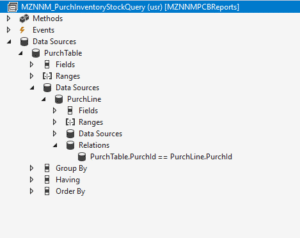
Adding the Simple Query:

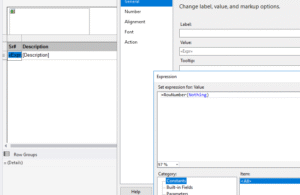
Adding Sr# in the report design: